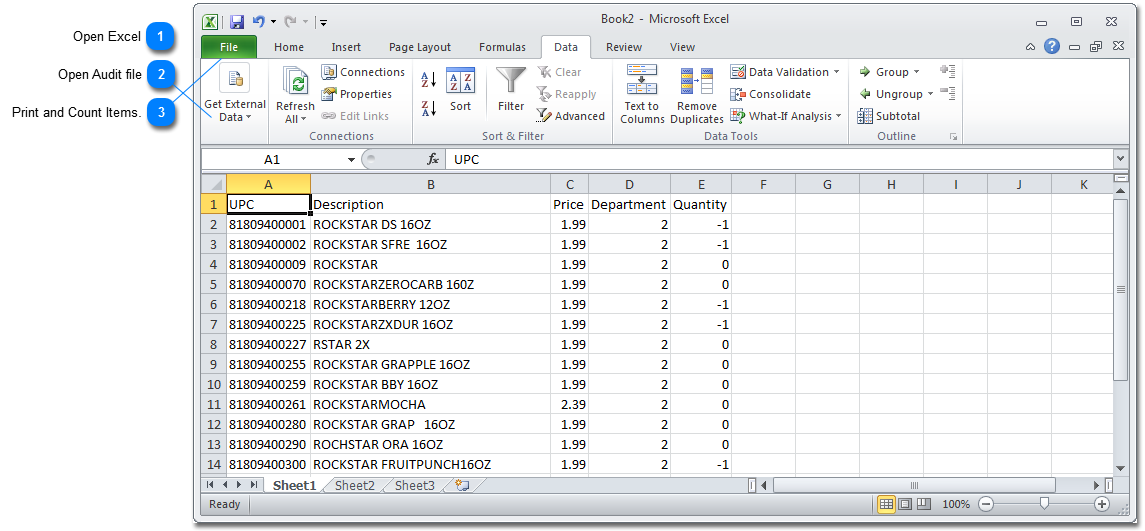
In this section we will open, print and enter the count in the Audit file we created in 'Create a List of Items' section. We will use Excel. These instructions should work for Excel versions 2007, 2010 and 2013. If you have an earlier version of Excel or you are using something other than Excel and are not very familiar with your program, please call for support and we will help you through this process.
Open Excel. It will open to a blank worksheet. DO NOT DOUBLE CLICK ON THE AUDIT FILE YOU JUST CREATED. If you do this Excel will screw up the UPC codes and this file will not be usable. If you did this accidentally, just close Excel and do not save, then open Excel using the program icon or start menu.
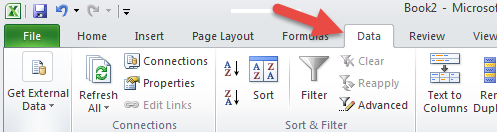
B. Click on 'Get External Data' and then click on 'From Text'. You may already see the 'From Text' button. Just click directly on that button. If this button is dim and not clickable you need to open a new worksheet in Excel and then go back to A. above.
C. The 'Import Text File' window opens. Find the Audit file (go to the folder you saved it in) and then click on the Audit file and then click the 'Import' button:
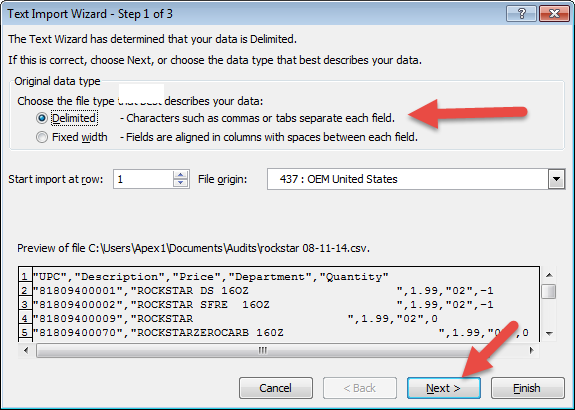
D. The 'Text Import Wizard' will open. Delimited should be checked - if it is not , click it and then click next:
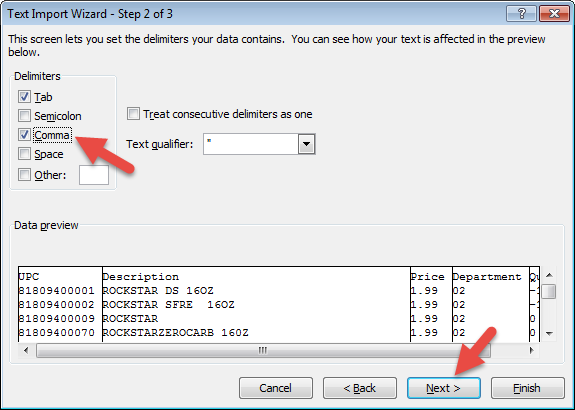
E. Step 2 of the wizard appears. Click on 'Comma' and click 'Next':
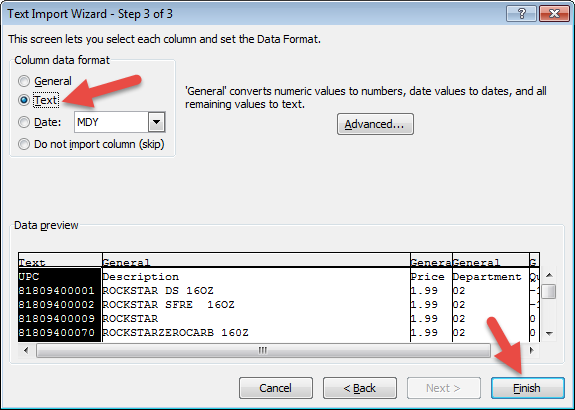
F. Step 3 of the wizard appears. The UPC column will be highlighted. Click 'Text'. The word Text should appear on top of the UPC column. Click Finish:
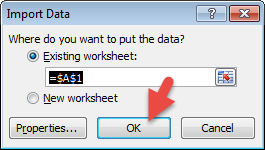
G. The 'Import Data' window will appear. Just click 'OK':
H. Your items should now appear in the spreadsheet and look similar to the sample spreadsheet at the top of this page.. Look at the UPC codes. They should look correct and all should be same length. If this was done incorrectly the UPC codes will look strange and be different lengths. If the UPC codes are wrong close Excel and do not save and start over from Step 1.
In this step we will print the Audit sheet so you can take it out in the store and count your items. We will set up Excel print grid lines. It makes writing your count on the paper easier.
A. Click on the 'Page Layout' tab and then click in the 'Print' box under 'Gridlines'. You should get a checkmark in that box:
B To Print click on File tab or the Flag button in Excel 2007 . Make sure you have paper in the printer and then click on Print and then the click the square Print button:
C. Your Audit sheet should print. You are now ready to take this sheet and count the items in the store. Write down the count for each item in the column next to Quantity.
You can leave this file open and come back after you have counted your Items. If you close this file, DO NOT SAVE! you will scramble the UPC codes. You will reopen this file when you are done with the count.










 or the Flag button in Excel 2007
  . Make sure you have paper in the printer and then click on Print and then the click the square Print button: