This section will describe how to create a file you can use to count items in your store. In this section you will create a Audit File, open the file in Excel, print it and update the file with counts. These instructions assume you are using Excel. You can use other spreadsheet software, but you must make sure that the UPC codes stay intact.
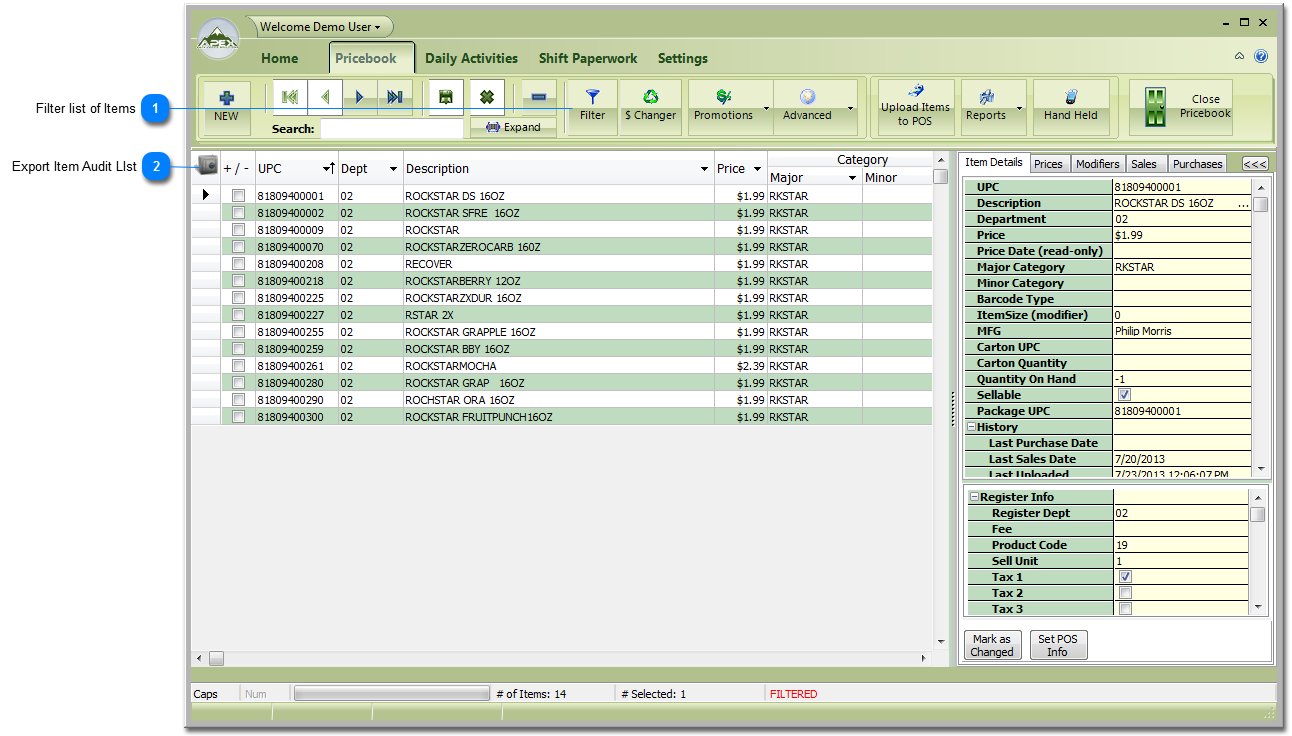
Filter your list of items to only show the items that you want to count. If you are counting all your soda you may want to filter using your soda Department, or you may want to filter to one manufacturer. The example screen is filtered using a Major Category. If you need a refresher on Filtering click here. If you want to set up Categories to use in Filters, click here for help on Categories.
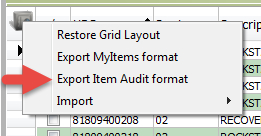
A. Click on the Grid tool button and the following menu will appear:
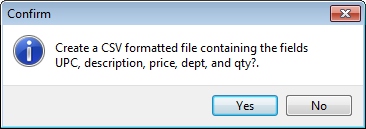
B. Click on 'Export Item Audit Format' and the Confirm box will appear. Please note the confirm box says you are creating a 'CSV' file. This is called a Comma Separated Value file and is readable by Excel and all other spreadsheet programs.
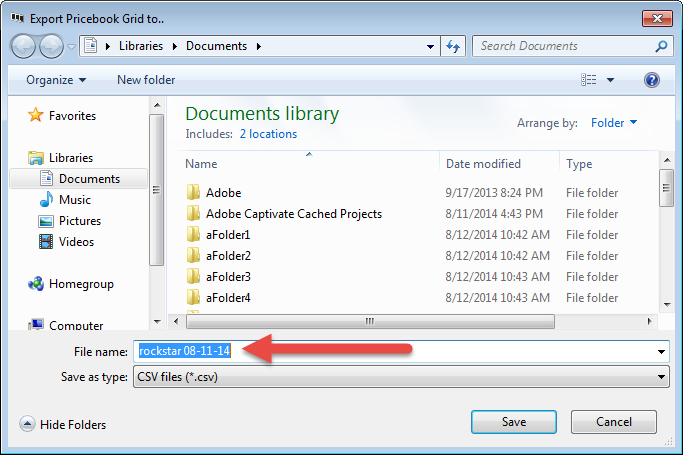
C: Click 'Yes' to continue. Click 'No' to cancel. After clicking 'Yes' a browse window appears to choose where you want to locate the file. It does not matter where you put the file, you just need to remember where you put it because we will be opening the file with other software:
D: Type a name for your audit file. We recommend the name contains what you are auditing and the date. In this example our name is 'rockstar 08-12-14' See next screen shot:
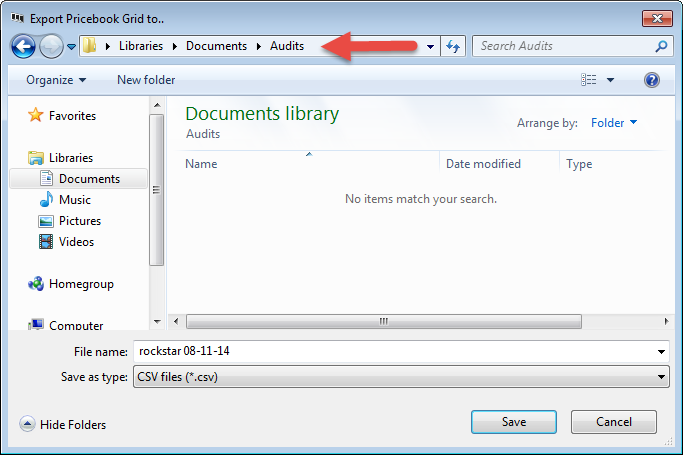
E. At this point you can choose a folder where you want to save this file. You will need to remember what folder you are using because we will need to find this file later. In the example we have choosen the folder Audits in My Documents. See screen shot:
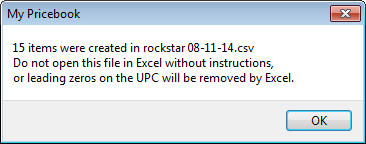
F: Click Save. A warning window will appear:
G: Click 'OK" this will take you back to the Pricebook screen.