Vendor Setup - Invoice Processing
This screen displays the settings for importing electronic Invoices (eInvoices) from a Vendor. Rules to update the Pricebook Prices from the imported invoice are also setup on this screen.
The Price being referred to on this screen is the retail Price of an Item, or the Price that will be charged at the register. Please pay attention to item 7, it will affect your prices in the Pricebook
If you think you need to make changes in this screen but are not sure what to do after looking through these instructions, please contact Support.
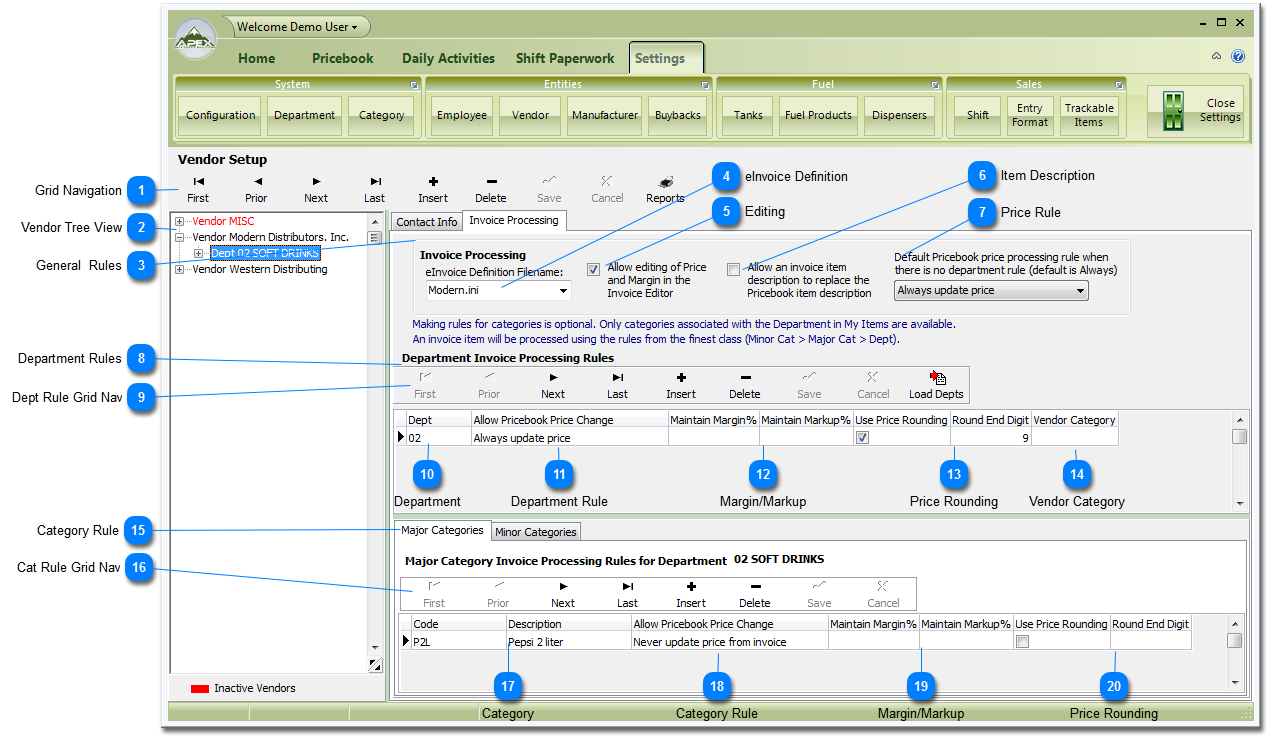
 Grid Navigation Please see Grid Navigation instructions here. Please note that the navigation bar is also driving the Vendor Tree.
To Select a Vendor's Invoice Processing screen to edit just use the navigation bar to highlight the Vendor or click on the Vendor in the Tree view.
|

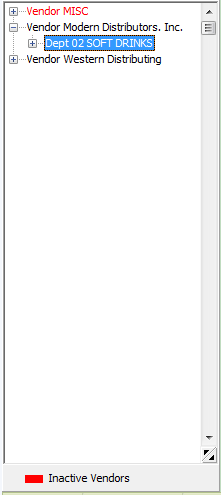
 will display the Departments that have Processing rules. These Rules are optional.

 eInvoice Definition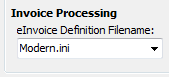 You need to choose the Definition file that matches your Vendor using the drop down arrow. If your Vendor is not in the list please go to the eInvoice Setup section for help to get this done. The eInvoice import will not work if you do not have the correct file selected.
Please note: When you save your Invoice Processing, the system will ask you if you would like to create a folder shortcut:
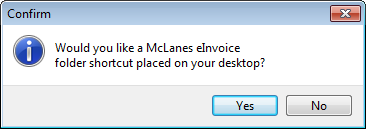 We recommend you answer yes to this. The system will create a folder on your desktop named with the name of the Vendor. You will save all the eInvoices you receive from the Vendor in this folder so My Pricebook can find the invoices. If you have multiple vendors that you receives eInvoices from, then you will have multiple folders on your desktop.
|

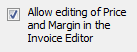
 Item Description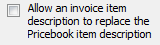 When checked, the Item description on the eInvoice will replace the description in the Pricebook. This is not reversible. The default is unchecked which means do NOT replace the descriptions.
|
 Price Rule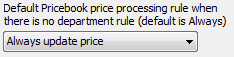 This rule sets what will happen to the Retail Prices when an eInvoice is imported. This is NOT reversible. The default is to change the prices. Your options for prices are as follows:
1. Always update price - This will overwrite the prices in the Pricebook.
2. Never update price from invoice - this will not update the prices - we recommend using this option if you are unsure about the prices coming from your Vendor.
3. Update price if invoice price is greater - this will update the Pricebook price if the price in the Pricebook is smaller than the price on the invoice.
Note: How pricing rules are applied to the Pricebook:
The system will move through these steps in order for every Item on an Invoice.
1. If Item's Minor category matches a Minor Category Rule, the system will update the Pricebook Price using that rule and will look at no other rules.
2. If Item's Major category matches a Major Category Rule, the system will update the Pricebook Price using that rule and will look at no other rules.
3. If Item's Department matches a Department Rule, the system will update the Pricebook Price using that rule and will look at no other rules.
4. The system will use the Price Rule from the General rules section.
|
 Department Rules Department rules for prices are optional. This section allows you to setup price rules for Departments . If these rules are set up, then the price updates for an Item will be applied if the Department that was assigned to that Item in the Pricebook matches the Department for the rule.
Note: How pricing rules are applied to the Pricebook:
The system will move through these steps in order for every Item on an Invoice.
1. If Item's Minor category matches a Minor Category Rule, the system will update the Pricebook Price using that rule and will look at no other rules.
2. If Item's Major category matches a Major Category Rule, the system will update the Pricebook Price using that rule and will look at no other rules.
3. If Item's Department matches a Department Rule, the system will update the Pricebook Price using that rule and will look at no other rules.
4. The system will use the Price Rule from the General rules section.
|
 Dept Rule Grid Nav Please see Grid Navigation instructions here.
You can add a Department Rule by clicking the Insert button
 and then filling out the rule. and then filling out the rule.The Load Depts button
 will automatically add a line for all Inventory type Departments that are in the system. You will then need to finish setting up the rules for each Department. will automatically add a line for all Inventory type Departments that are in the system. You will then need to finish setting up the rules for each Department. |


 Department Rule Select type of rule to apply:
1. Always update price - This will overwrite the prices in the Pricebook.
2. Update price if invoice price is greater - this will update the Pricebook price if the price in the Pricebook is smaller than the price on the invoice.
3. Update price to maintain min margin - this will update the Pricebook price if the margin on the Invoice for the Item is less that the margin setup in the Rule. See Item 12
4. Never update price from invoice - this will not update the prices.
|
 Margin/Markup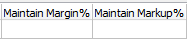 These two fields only work with Department Rule 3 in Item 11. You enter either the Margin or the Markup and the system will calculate the the other one. If you enter a Margin the system calculates Markup and vice versa. Entry is number.
For an explanation of Markup and Margin please go to the Definitions section.
|
 Price Rounding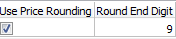 Price rounding allows you have your prices end in a number you set. Price round is applied after the Department Rule in Item 11 is applied. To make it work make sure there is a check mark in 'Use Price Rounding' field
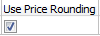 . Then set the ending in the 'Round End Digit' field . Then set the ending in the 'Round End Digit' field . In the example all prices will set to end in 9. . In the example all prices will set to end in 9. |
 Vendor Category Some Vendor assign Items a category on their invoices. If you know the category that the Vendor uses, please enter it here. This entry is optional. The benefit of setting this in is If the systems encounters an Item that is not set up in the Pricebook, the system can add the Item, assign the Department and the price and set the Item to upload to the register. This is not related to the Categories set up in the Pricebook.
|
 Category Rule Category rules for prices are optional. Category Rules are sub rules to Department Rules so you must have a Department Rule setup to create Category rules for that Department. This section allows you to setup rules for Major and Minor Categories. If these rules are set up, then the price updates for an Item will be applied if the Categories that were assigned to that Item in the Pricebook matches the Categories for the rule. Categories must have been setup before you can add rules. Major and Minor setup is the same just choose which rules you want to work in by clicking on the Major Categories or Minor Categories tab
 . . Please the Category Setup section for instructions on setting up Categories.
Note: How pricing rules are applied to the Pricebook:
The system will move through these steps in order for every Item on an Invoice.
1. If Item's Minor category matches a Minor Category Rule, the system will update the Pricebook Price using that rule and will look at no other rules.
2. If Item's Major category matches a Major Category Rule, the system will update the Pricebook Price using that rule and will look at no other rules.
3. If Item's Department matches a Department Rule, the system will update the Pricebook Price using that rule and will look at no other rules.
4. The system will use the Price Rule from the General rules section.
|
 Cat Rule Grid Nav Please see Grid Navigation instructions here.
You can add a Category Rule by clicking the Insert button
and then filling out the rule. |
 Category Select the Category you want to create a rule for. If you do not see the Category you will need to set the Category up. See Category Setup.
|
 Category Rule Select type of rule to apply:
1. Always update price - This will overwrite the prices in the Pricebook.
2. Update price if invoice price is greater - this will update the Pricebook price if the price in the Pricebook is smaller than the price on the invoice.
3. Update price to maintain min margin - this will update the Pricebook price if the margin on the Invoice for the Item is less that the margin setup in the Rule. See Item 19.
4. Never update price from invoice - this will not update the prices.
|
 Margin/Markup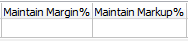 These two fields only work with Category Rule 3 in Item 18. You enter either the Margin or the Markup and the system will calculate the the other one. If you enter a Margin the system calculates Markup and vice versa. Entry is number.
For an explanation of Markup and Margin please go to the Definitions section.
|
 Price Rounding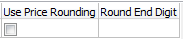 Price rounding allows you have your prices end in a number you set. Price round is applied after the Category Rule in Item 15 is applied. To make it work make sure there is a check mark in 'Use Price Rounding' field
. Then set the ending in the 'Round End Digit' field. In the example all prices will set to end in 9. |