Update Audit File and Save
|
In this section we will enter your count and save the Audit file.
Once you finish these steps, go to Import the Audit File.
|
|
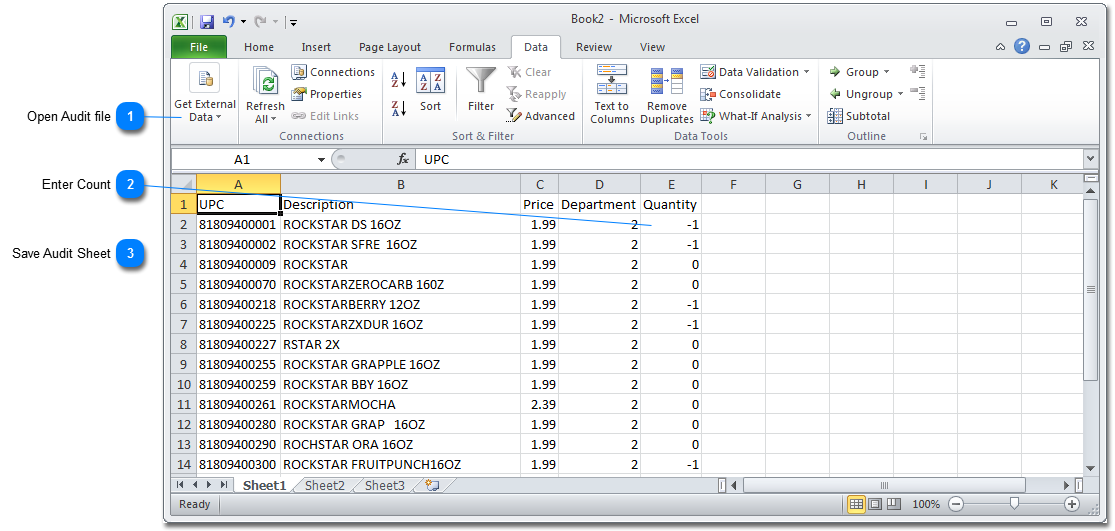


 Save Audit Sheet You can click the Save icon
 . but you must change the file type. If you do not change the file type you will screw up the UPC codes and the file will be unusable. Please follow the instructions below: . but you must change the file type. If you do not change the file type you will screw up the UPC codes and the file will be unusable. Please follow the instructions below:A. Click the Save icon
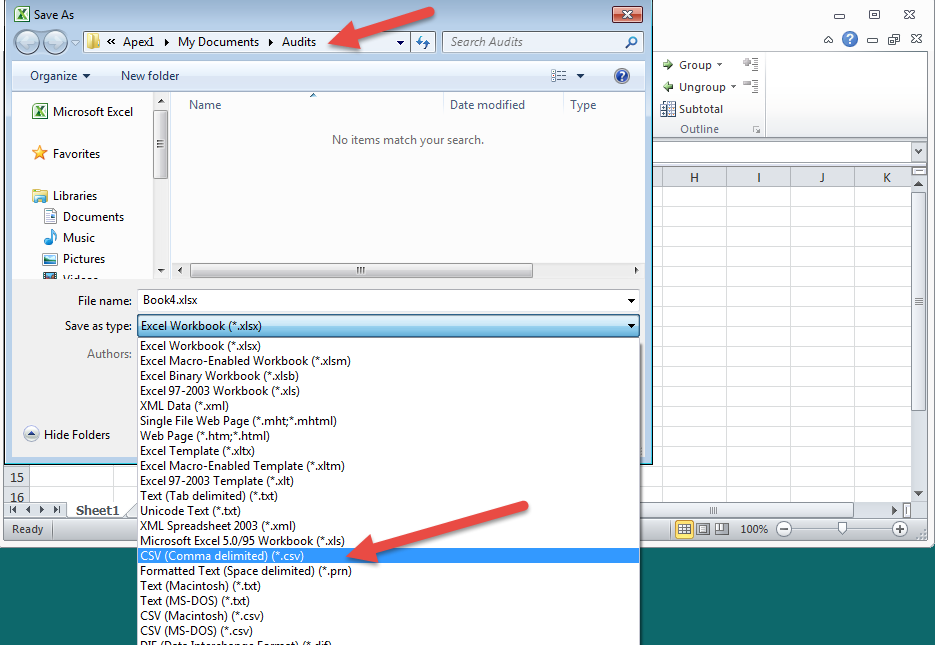
or click Save. The Save window will appear: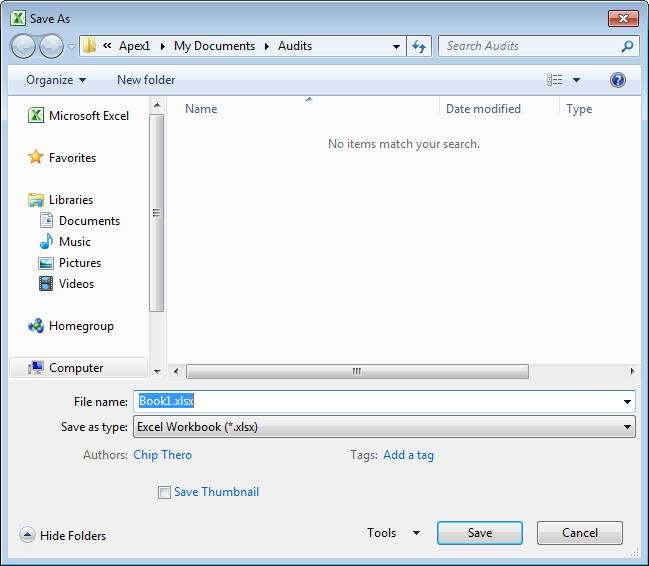 B. Make sure you are in the folder where you created the Audit file originally. Select CSV in 'Save as Type' field:
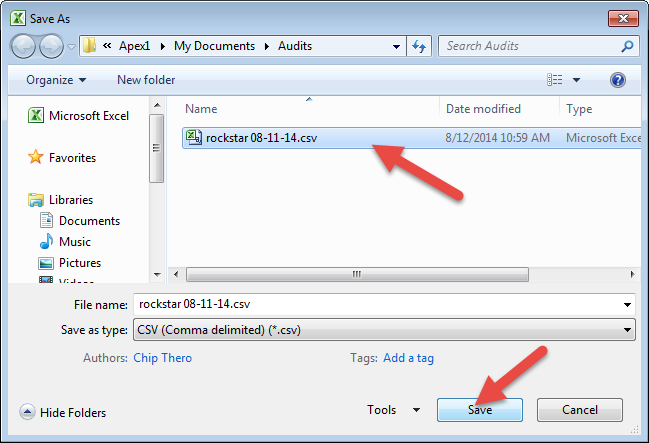
 C. Click on the Audit file and then click the Save button:
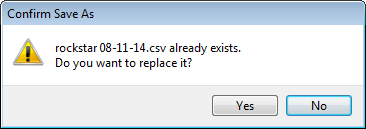
 D. The 'Confirm Save As' window appears. Click Yes;
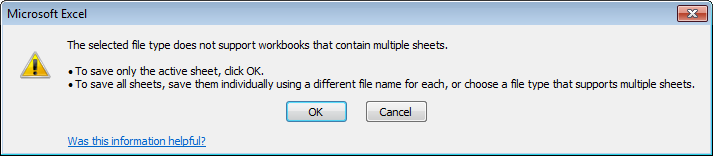
 E. Excel will show 1 or 2 File Type warning windows. They are warning you that this file type does not have all the features that a regular Excel will have. This is normal, just click the 'OK' button in both windows:
  Your are finished and ready to import this Audit file in My Pricebook. Please continue to the section Import the Audit File.
|