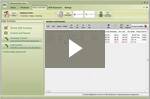
This screen is where you import eInvoices from your Vendors. Not all Vendors provide eInvoices but the big grocery Vendors usually do. Before you can use this tool, you must add your Vendor in Vendor Setup and also set up that Vendor's Invoice Processing. You must also add your eInvoices to the Vendor folder that is created when you set up Invoice Processing. Please follow the instructions below to import an invoice.
Make Sure you have put your eInvoices in to the Vendor Folder or nothing will be on this screen to import.
Select Invoices you want to import by clicking in the Select box next to the invoices. You can also select all invoices in the list by clicking the Select All button.
If you want to remove an Invoice from the list that you are never going to import, select only that Invoice and click the 'Delete selected invoices' button.
Click the 'Import selected invoices' button. The system will prompt you to make sure of your selection:
Click Yes and the system will import the data, remove the Invoices from this list and add the to the Invoices and Payouts list in Daily Activities. clicking No will take you back to the eIvoicing Processing window.
Click close to take you back to the Invoice list in Daily Activities:
The imported Invoices will show in red. You will need to edit them and finalize the Distributions. Go to Finalize/Edit Invoices how-to for instruction.






 next to the invoices. You can also select all invoices in the list by clicking the Select All button
 .
. .
.