Audit Inventory
|
The Audit function allows you to enter an audit or count into the hand held and then upload the audit to My Pricebook for inventory adjustments.
Before doing an audit, please update your validation files on the hand held. Instructions on downloading new validation files are here.
When your audit is complete, import your audit into My Pricebook by following these instructions.
Valid for My Handheld Version 3.04
|
|





 Scan your item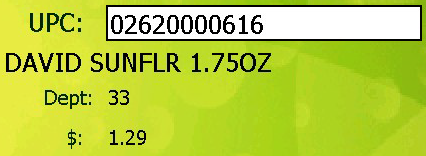 Scan item you are counting. You will hear a beep and the UPC field will fill when you receive a successful scan. A description, department and price will also display and the app will be waiting in the Quantity field. If you see a UPC number but no other information that could mean 3 possible things.:
1. Your Validation file is not up to date or did not load. Click here for instructions to load Validation file.
2. This is a new item and is not yet in My Pricebook. You can continue and update this product's description and department when you import this audit.
3. Your hand held is not reading the UPC codes properly. Please contact support to help calibrate your hand held device. This is not likely but can be an issue.
|





 and will be filled with all the items you entered.
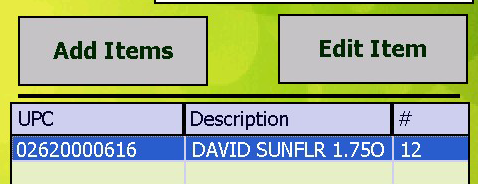
 and you can change the quantity or tap
  to delete the item from this audit.


 Tap Close After the upload is complete, tap Close. You are now ready to import the audit into My Pricebook. Click here for instructions to import your audit.
|