Import the Audit File
|
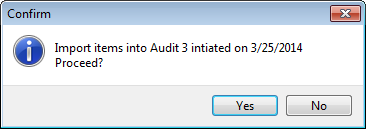
In this section you will import an audit file into My Pricebook. The Audit file will need to be on the computer, or on an inserted USB drive. You will need to know the name of the file as well.
If the Audit file was uploaded from a hand held device, the name of the file will be Audits.txt.
Once you complete the import, go to Process the Audit file.
|
|
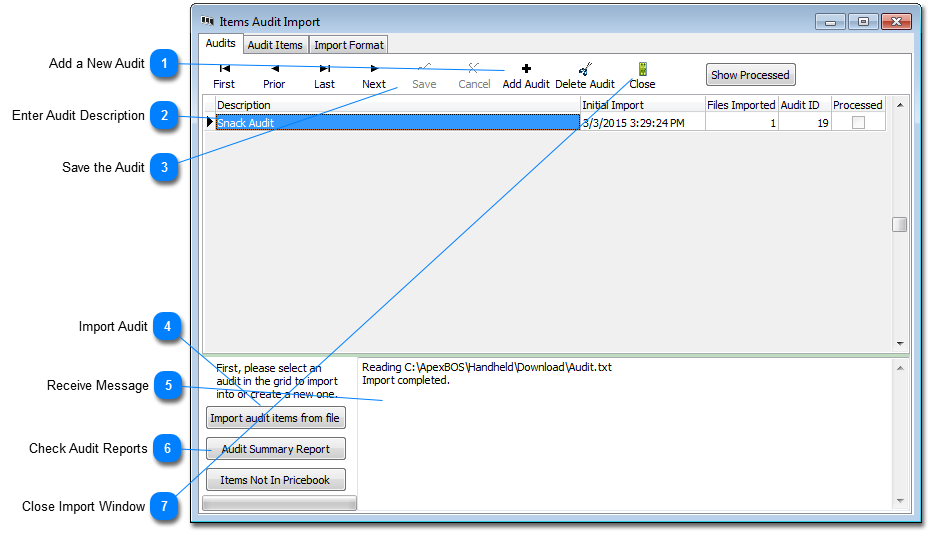






 Receive Message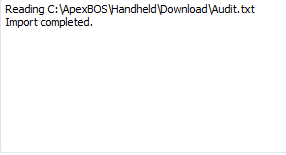 When the import completes, you will receive a message in the message box. The 'Files Imported' field
 will increase by 1. You can import multiple files into one Audit. will increase by 1. You can import multiple files into one Audit. Please make sure you see the "Import completed. xxxx records were added' If no records were added you me need help getting the system to recognize the Audit file. Please call Support.
|
 Check Audit Reports This is optional. Audit reports can be run and checked here. The can also be run from the Audit Processing screen.
|


 to close the Import window.